OVERVIEW
What Are WhosOff Webhooks — and Why Do They Matter?
Managing leave and overtime requests has always involved a degree of lag. A team member submits a request in whichever platform you are using; a manager gets an email notification; the email sits in an inbox while the rest of the team wonders about cover. That delay creates friction — particularly in fast-moving HR environments where visibility and speed are everything.
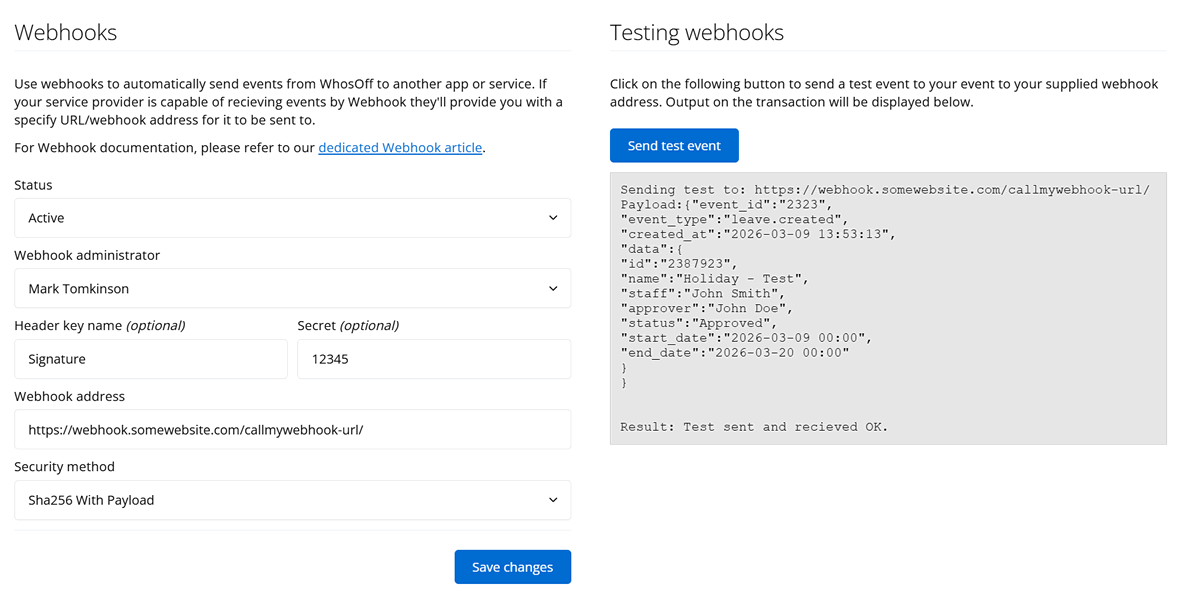
With this release, WhosOff now supports outbound Webhooks for core HR trigger events. Administrators (Super Users) can configure these from within the WhosOff settings panel and point them at any platform capable of receiving an HTTP POST request — which, in practice, means virtually everything your team already uses.
This post walks through every supported trigger event in detail, and then explores exactly how you can leverage these Webhooks inside Microsoft Teams, Slack, Google Chat, Zapier/Make, and AirOps — with practical use cases for each.
TRIGGER EVENTS
The events that power your automations
Webhooks will be scoped to the following trigger events. All events will fire to the endpoint you supply — giving you full control over notification granularity and providing you the power to route the call within your third party applications.
Leave Request Submitted
Fires the instant a team member submits a new leave request. Carries team member details, leave type, date range, and the current status.
Leave Request Approved, Declined or Cancelled
Fires when a manager approves or declines a pending leave request, or when a leave request is cancelled. Includes the approver's identity, decision timestamp, and the current status, Approved, Declined or Cancelled.
Overtime Request Submitted
Fires when a team member logs an overtime request. Carries affected dates and times, with team member details and status.
Overtime Request Approved, Declined or Cancelled
Fires on any manager decision against an overtime request, or a team member cancelling a request. Payroll-ready data (affected dates and times) is included in the payload to support downstream processing workflows.
Example Payload - Leave Request Submitted
Every Webhook delivers a consistent JSON payload to your endpoint. Here is an example of a leave request being submitted and the subsequent "leave.created" event being fired:
{
  "event_id": "20",
  "event_type": "leave.created",
  "created_At": "2026-02-27 11:46:41",
  "data": {
            "id": "10049172",
            "name": "Holiday",
            "staff": "Hugh Zoff",
            "approver": "",
            "status": "pending",
            "start_date": "2026-03-28 00:00",
             "end_date":"2026-03-29 00:00"
          }
}ARCHITECTURE
How the Webhook flow works
Understanding the data path helps you plan your integration architecture, particularly if you are routing Webhooks through an automation layer like Zapier or Make before they reach their final destination.

WhosOff fires the Webhook synchronously with the triggering event — there is no batch delay or scheduled flush. Your endpoint receives the payload within seconds of the action occurring in WhosOff. If your endpoint returns a non-2xx status code, WhosOff will retry delivery with an exponential backoff, up to three attempts, ensuring resilience against temporary endpoint unavailability.
PLATFORM INTEGRATIONS
Where to send your Webhooks
Each platform unlocks a different layer of team management capability. Below is a detailed breakdown of integration approach, configuration steps, and the most impactful use cases for HR Managers and Admins.
Microsoft Teams
Post real-time leave and overtime notifications directly into Teams channels and trigger approval workflows via Power Automate.
For organisations running on Microsoft 365, Teams is where decisions get made. Routing WhosOff Webhooks into Teams means your line managers see leave requests without leaving the app they already have open all day.
The two primary integration approaches are Incoming Webhooks (native Teams feature, zero-code) and Power Automate (for conditional logic, approvals, and multi-step workflows). For most HR use cases, starting with a native Incoming Webhook and graduating to Power Automate when you need branching logic is the recommended path.
Key use cases
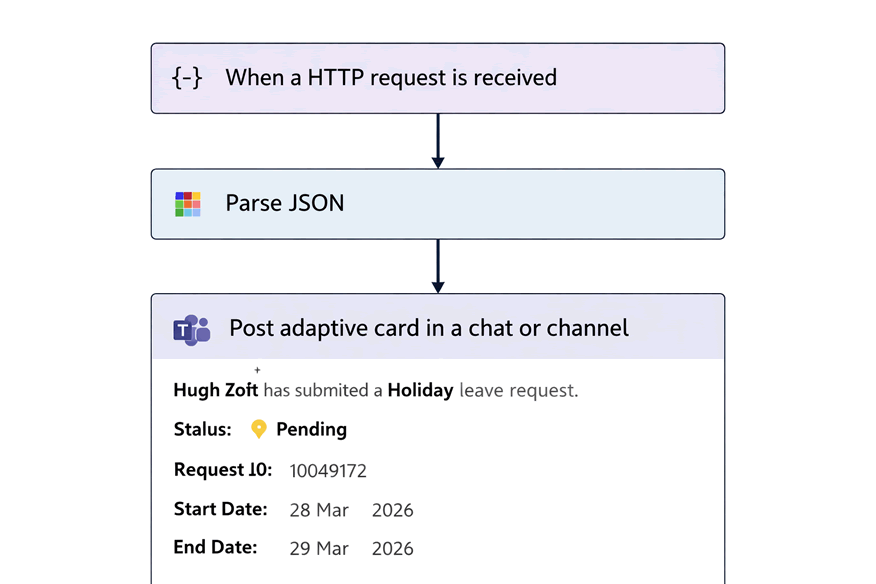
- Post a formatted Adaptive Card to a #leave-requests channel whenever a leave request is submitted — showing the employee name, dates, and type
- Send a private Teams message to the relevant line manager when one of their direct reports submits overtime — removing email as the notification layer entirely.
- Trigger a Power Automate flow on leave.request.approved to update a shared team calendar in SharePoint or Outlook, keeping cover visibility accurate without manual updates
- Escalate outstanding requests (via scheduled Power Automate checks) if no decision has been made within 48 hours of a submission Webhook.
{
  "$schema": "http://adaptivecards.io/schemas/adaptive-card.json",
  "type": "AdaptiveCard",
  "version": "1.5",
  "body": [
    {
      "type": "TextBlock",
      "text": "📅 New Leave Request",
      "weight": "Bolder",
      "size": "Large",
      "wrap": true
    },
    {
      "type": "TextBlock",
      "text": "A new leave request has been submitted and is awaiting approval.",
      "wrap": true,
      "spacing": "Small"
    },
    {
      "type": "FactSet",
      "spacing": "Medium",
      "facts": [
        {
          "title": "Employee:",
          "value": "Hugh Zoff"
        },
        {
          "title": "Leave Type:",
          "value": "Holiday"
        },
        {
          "title": "Status:",
          "value": "🟡 Pending"
        },
        {
          "title": "Start Date:",
          "value": "28 Mar 2026"
        },
        {
          "title": "End Date:",
          "value": "29 Mar 2026"
        },
        {
          "title": "Request ID:",
          "value": "10049172"
        }
      ]
    },
    {
      "type": "TextBlock",
      "text": "Created: 27 Feb 2026, 11:46",
      "isSubtle": true,
      "spacing": "Small",
      "wrap": true
    }
  ],
  "actions": [
    {
      "type": "Action.OpenUrl",
      "title": "View in WhosOff",
      "url": "https://app.whosoff.com"
    }
  ]
}
Slack
Send richly formatted Block Kit messages to any Slack channel or DM, and drive approval workflows with interactive message buttons.
Slack's Incoming Webhooks are one of the most straightforward integrations available — paste a Webhook URL from Slack's App configuration into WhosOff, and messages start flowing immediately. For teams that want interactive buttons and structured data, Slack's Block Kit format provides the richness needed.
If you want to route based on department, manager, or leave type — for example, posting engineering team requests to #eng-leave and customer success requests to #cs-ops — pair the WhosOff Webhook with Zapier or a lightweight serverless function to conditionally route payloads before they reach Slack.
Key use cases
- Post a Block Kit message to a dedicated #hr-requests channel for every leave or overtime submission — giving HR visibility across all requests in a single, searchable feed.
- DM the relevant manager immediately on a leave submission event, reducing the time between request submission and manager awareness.
- Use Slack Workflow Builder with an incoming Webhook to trigger a multi-step approval flow — collecting manager responses directly inside Slack and posting a decision record back to a Slack channel.
- Notify a #payroll or #finance channel automatically when overtime requests are approved, providing a live audit trail ahead of pay cycle runs.
{
  "blocks": [
    {
      "type": "header",
      "text": {
        "type": "plain_text",
        "text": "📅 New Leave Request",
        "emoji": true
      }
    },
    {
      "type": "section",
      "text": {
        "type": "mrkdwn",
        "text": "*Hugh Zoff* has submitted a *Holiday* leave request."
      }
    },
    {
      "type": "section",
      "fields": [
        {
          "type": "mrkdwn",
          "text": "*Status:*\n🟡 Pending"
        },
        {
          "type": "mrkdwn",
          "text": "*Request ID:*\n10049172"
        },
        {
          "type": "mrkdwn",
          "text": "*Start Date:*\n28 Mar 2026"
        },
        {
          "type": "mrkdwn",
          "text": "*End Date:*\n29 Mar 2026"
        }
      ]
    },
    {
      "type": "context",
      "elements": [
        {
          "type": "mrkdwn",
          "text": "Created: 27 Feb 2026, 11:46"
        }
      ]
    },
    {
      "type": "actions",
      "elements": [
        {
          "type": "button",
          "text": {
            "type": "plain_text",
            "text": "View in WhosOff"
          },
          "url": "https://app.whosoff.com",
          "action_id": "view_request"
        }
      ]
    }
  ]
}Google Chat
Send structured Card messages to Google Chat Spaces and integrate with Google Workspace automation via Apps Script or Cloud Functions.
Google Chat Spaces support Incoming Webhooks natively. In a Google Workspace environment, this makes WhosOff Webhook integration particularly powerful — you can route events not only to Chat spaces, but continue the automation chain through Google Apps Script, Google Sheets, or Looker Studio dashboards.
Key use cases
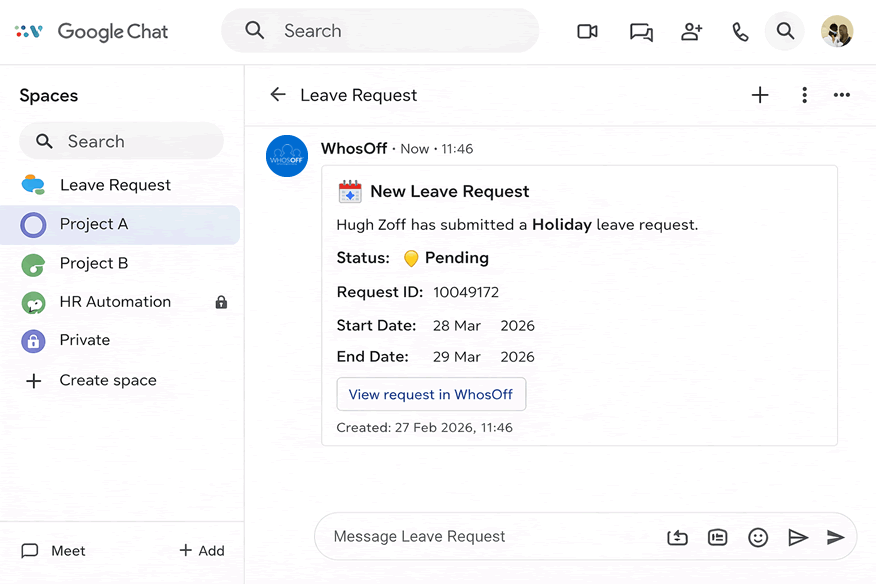
- Post leave request notifications to a dedicated HR Google Chat Space with structured Card messages showing all relevant metadata.
- Use a Google Apps Script deployed as a Web App to receive the WhosOff Webhook, log every event to a Google Sheet, and post a condensed summary to Chat — giving you both a live notification and a historical record.
- Trigger a Google Calendar event automatically on leave.request.approved using Apps Script, keeping team-wide Workspace calendars in sync without manual entry
- Use Google Chat's threaded reply feature to keep all manager responses to a request within a single, auditable thread in your HR Space.
Zapier & Make (formerly Integromat)
Use Zapier or Make as a middleware layer to fan out, filter, and transform WhosOff Webhooks into actions across thousands of connected apps.
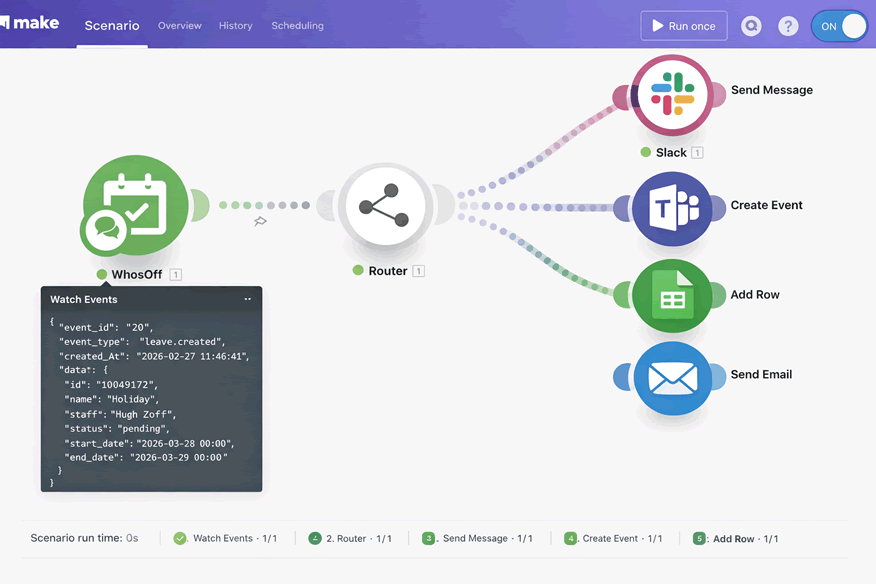
Zapier and Make are the most versatile destination for WhosOff Webhooks if your automation requirements involve multiple downstream systems. Rather than pointing your Webhook at a single platform, you point it at a Zapier or Make trigger — and from there, a single WhosOff event can cascade into actions across Slack, Teams, HR systems, spreadsheets, HRIS platforms, payroll tools, and more.
This is the recommended approach for HR Managers who need multi-system orchestration without writing code. Both platforms offer visual workflow builders and pre-built connectors to hundreds of tools.
Key use cases
- Fan a single leave.request.submitted Webhook out to both Slack (manager DM) and a BambooHR or Personio record update simultaneously — one trigger, multiple outcomes.
- Build a Make scenario that receives the Webhook, looks up the employee in your HRIS, calculates remaining leave balance via a formula, and posts a contextual summary to Teams rather than raw event data.
- Log every WhosOff event to an Airtable or Google Sheets base via Zapier — creating a structured, queryable audit trail that can feed into Looker Studio or Power BI reporting dashboards.
- Trigger an automatic email notification via SendGrid or Mailchimp to the employee confirming their request has been received, branded in your company tone-of-voice.
AirOps
Trigger AI-powered workflows from WhosOff events — generate contextual summaries, draft decision rationale, and power intelligent HR assistants.
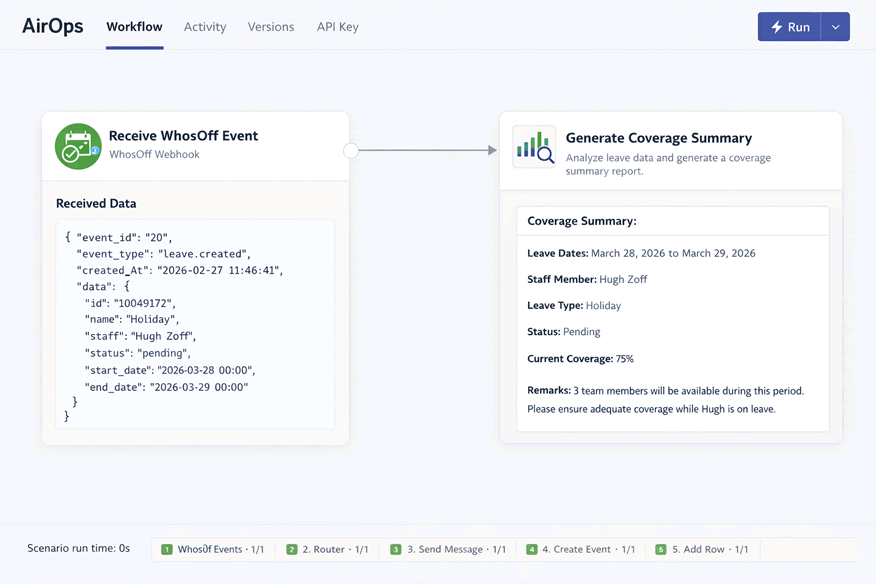
AirOps is a platform for building AI-powered workflows and assistants. Connecting WhosOff Webhooks to AirOps opens up a category of automation that goes beyond notification — you can use the structured payload data to drive LLM-powered steps that generate context, surface insights, or assist HR Managers in making faster, more informed decisions.
This is particularly relevant for HR teams managing high volumes of requests who want AI assistance without building bespoke tooling. AirOps workflows can receive the Webhook, run AI steps against the payload, and push enriched outputs back to Slack, Teams, or an internal HR portal.
Key use cases
- On each leave.request.submitted event, trigger an AirOps workflow that checks team coverage context (from a connected data source) and generates a plain-English coverage impact summary for the manager to review before approving.
- Use AirOps to auto-draft a polite, personalised decline message to an employee when a leave request is rejected — saving managers time on communications while maintaining a human tone.
- Feed approved overtime data into an AirOps pipeline that summarises weekly overtime patterns by department and surfaces anomalies for HR review — turning event data into actionable intelligence.
- Build an internal HR assistant that can answer "who is off this week" or "has John's leave been approved" questions by connecting AirOps to the WhosOff Webhook stream as a live data source.
PLATFORM COMPARISON
Choosing the right integration for your team
Not every platform is the right fit for every team. Use this guide to match your integration approach to your technical setup, automation ambitions, and HR workflow requirements.
| Platform | Setup complexity | Requires code? | Multi-app routing | AI Capabilities | Best for |
| Microsoft Teams | Low – Medium | ◑ Optional (Power Automate) | ◑ Via Power Automate | ✗ | Microsoft 365 orgs wanting channel notifications & Outlook calendar sync |
| Slack | Low | ✗ No | ◑ Via Workflow Builder | ✗ | Slack-first teams wanting instant, zero-code channel notifications |
| Google Chat | Low – Medium | ◑ Optional (Apps Script) | ◑ Via Apps Script | ✗ | Google Workspace orgs needing Chat + Sheets + Calendar integration |
| Zapier / Make | Medium | ✗ No | ✓ Native multi-app | ◑ Limited (AI steps available) | Multi-system orchestration across HRIS, payroll, and comms platforms |
| AirOps | Medium | ✗ No | ✓ With connectors | ✓ Core capability | HR teams wanting AI-assisted summaries, coverage analysis & smart communications |
GETTING STARTED
Setting up your WhosOff Webhook
Configuring Webhooks in WhosOff takes under five minutes. Here is the high-level process — your chosen platform's documentation covers the endpoint URL generation step specific to that service.
In your destination platform (Slack, Teams, Zapier, etc.), create a new Incoming Webhook or HTTP trigger and copy the generated endpoint URL. This is where WhosOff will POST event payloads.
Navigate to Administration → Company Settings → Webhooks in your WhosOff account. This is available to Super Users only.
Paste your endpoint URL, provide a Header Key and Secret if you're using the Sha256 Security Method.
Click on "Send test event", this will fire a sample event immediately. Confirm delivery in your destination platform.
Once happy, set the Status to Active and click on Save Changes. Your Webhook will be set to live immediately.
WHY IT MATTERS
The Real-World impact for HR Managers
Managers see requests the moment they are submitted — not hours later when they check email. Decision speed increases, and employees get faster responses.
Whether your team lives in Teams, Slack, or Google Chat — or all three — Webhooks work with any HTTP endpoint. You are never locked into a single communication layer.
Every payload is structured JSON — ready to be consumed by Zapier, Make, Power Automate, AirOps, or custom code without transformation overhead.
Route events to a logging destination (Google Sheets, Airtable, a data warehouse) to build a complete, queryable record of every HR event without manual data entry.
GET STARTED TODAY
Ready to connect WhosOff to your Team's Workflow?
Webhooks are available to all WhosOff Super Users. Head to your Company Settings to configure your Webhook in under five minutes.
👉 Start your FREE WhosOff trial instantly Read the Webhooks Docs


Similar articles
30.SEP.2026
Most businesses don't set out to buy leave management software - they start with a spreadsheet, or a shared Outlook calendar, and it works fine for a while. Then the balances stop adding up, two people get approved for the same week, and nobody's sure which file is actually current. Here's an honest, feature-by-feature comparison of spreadsheets, Outlook calendars, and dedicated leave management software - including exactly where each one starts to fall apart.
22.SEP.2026
Who's in, who's off, and when are they back? It sounds like a simple question - until sickness, holiday clashes, and a spreadsheet nobody's updated since last week make it anything but. Here's a full UK guide to what absence management software actually does, how it differs from leave management, and the rules worth knowing before you build (or fix) your process.
07.SEP.2026
A spreadsheet is fine when there are five of you. It's less fine when requests are arriving by email, WhatsApp, and sticky note, and nobody's quite sure who's actually off next week. Here's a practical look at why leave admin hits small businesses harder than most, and how to know when it's time for something better than a shared spreadsheet.
24.AUG.2026
Leave management looks simple on paper - until three people request the same week off, your busiest month collides with a holiday rush, and someone resigns with ten days still owed. These situations aren't exceptions; they're what HR actually deals with every week. Here's a practical look at the most common leave scenarios, and how the right process (and the right software) stops each one from becoming a headache.