Quickly and easily change multiple users departments within the system using the Bulk Change Departments tool. To do this you can do the following.
- Login to your WhosOff Account
- Click the Administration tab (to bring up the full page, not the drop-down menu)
- Then under Staff Administration click Bulk Change Departments
On the resulting page you will then have the option to select which Department you would like to manage the staff for by using the Select Department option, with the option of then adjusting each persons Department individually.
Alternatively you can use the Bulk Set Department feature on the right to set everyone currently on screen to the same Department.
For example, you might have selected Accounts, but wish to change everyone in Accounts to the Finance Department.
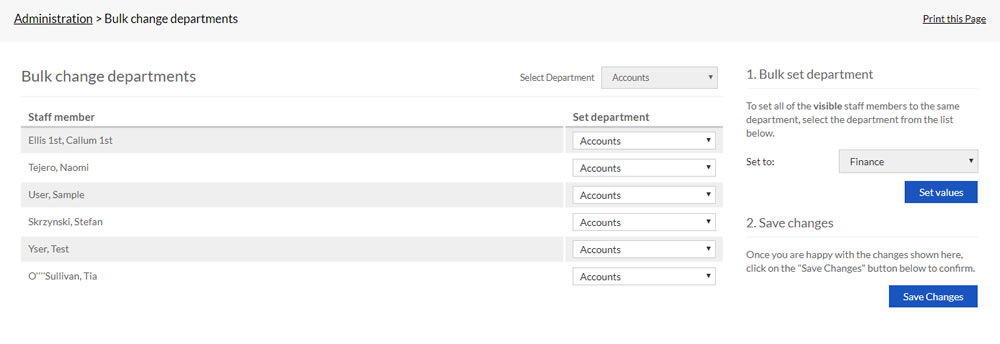
Screenshot: Administration > Bulk Change Departments
PLATFORMS
CATEGORIES
PHRASES
departments, bulk, change, groups, teamsSHARE


Similar articles
How do I prevent or allow staff to see other departments?
Super users can use the Cross Department View setting to choose whether staff can see the whole company, or just their own department.
How to set up Departments
Departments allow you to separate your staff into different groups.