Need to add a new staff member whilst using one of the WhosOff mobile applications? Follow these simple steps
Adding a new staff member
- Ensure you are logged into your account
- Tap on the Menu Toggle icon
- From the menu, tap Admin and then Add New Staff
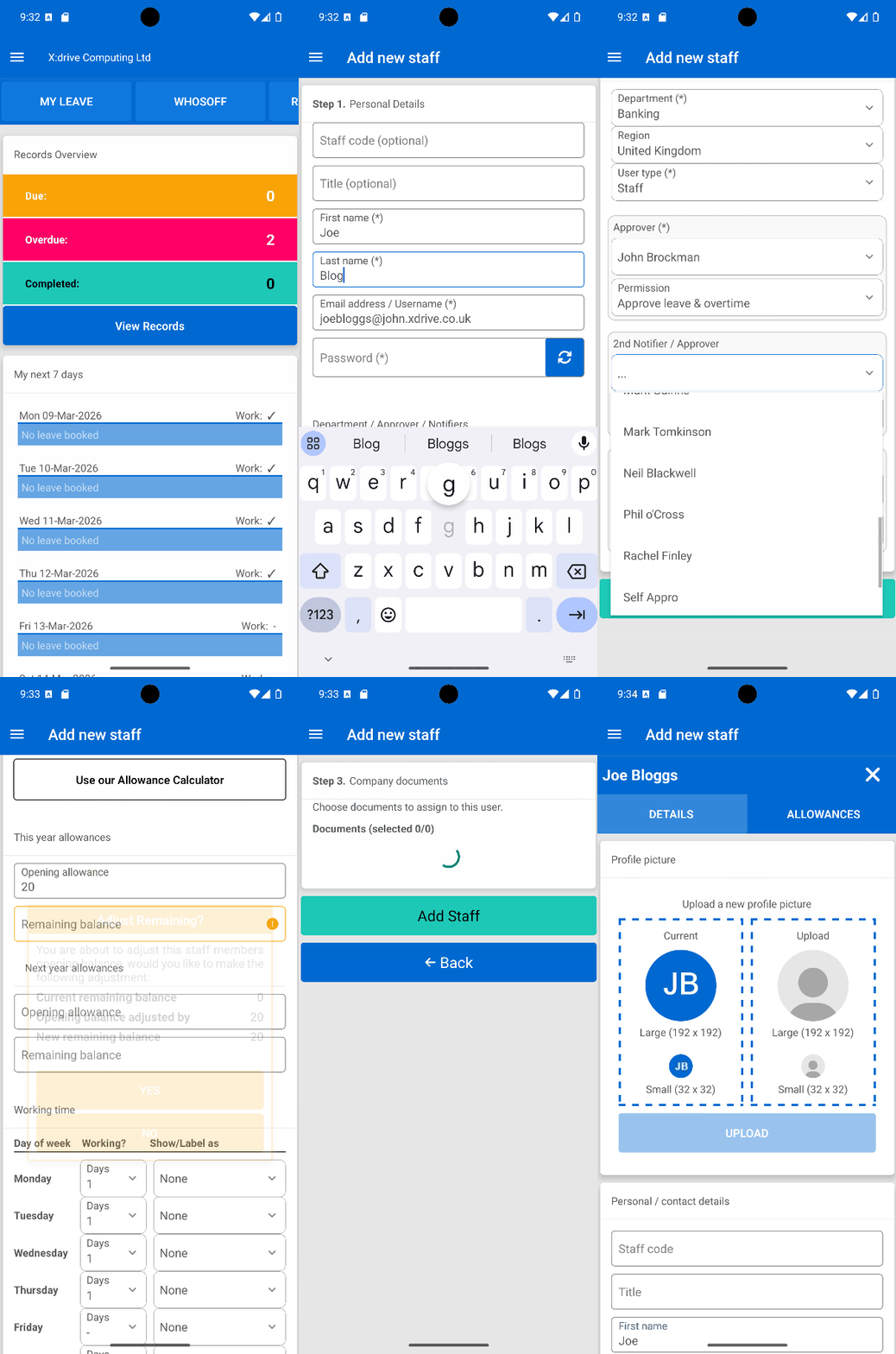
- First enter your new staff's Personal details, fields marked with * (Asterisk) are mandatory, then tap Next
- Next enter your new staff's Allowances / Working time this includes important options like Allowance Type and allows you to enter allowances here (Allowances can also be added later), then tap Next or Add Staff (Depending on if Document storage is enabled)
- If Document Storage is enabled (and company documents are available to add) you will be able to add documents to a user during the Company documents step, then tap Add Staff
- Choose whether you wish to send a welcome message to this new user in the popup that appears on successful creation
- You can either choose to further edit your staff member within Details and Allowances or press the X to return to Staff Management
Visual Overview
SHARE


Similar articles
How to subscribe to a calendar feed in Outlook
Setup and subscribe to your WhosOff calendar using Microsoft Outlook
Introduction to the new WhosOff UI
View our quick introduction to the new WhosOff user interface.
How to subscribe to a calendar feed in Google Calendar
Learn how to setup and subscribe to your WhosOff calendar feed from within your Google Calendar account.
How to subscribe to a calendar feed using Office 365
Find out how to setup and subscribe to your WhosOff calendar through Office 365.
Reset or request a new password
As an added security feature, WhosOff does not reveal any passwords to any user of the system, irrelevant of their user level. This article explains how to request a new password, and how a super user can reset an employee's password.
How to log in with Google (Social Sign On)
Link your personal or work Gmail to the WhosOff platform for seamless sign on.