If you need to set up a staff member's Notifiers and Approvers whilst using one of the WhosOff mobile applications, follow these simple steps.
Note: In order to set someone up as a Approver/Notifier for a staff member they must have the Approver or Super user user level.
Setting up Approvers/Notifiers
- Ensure you are logged into your account
- Tap on the Menu Toggle icon
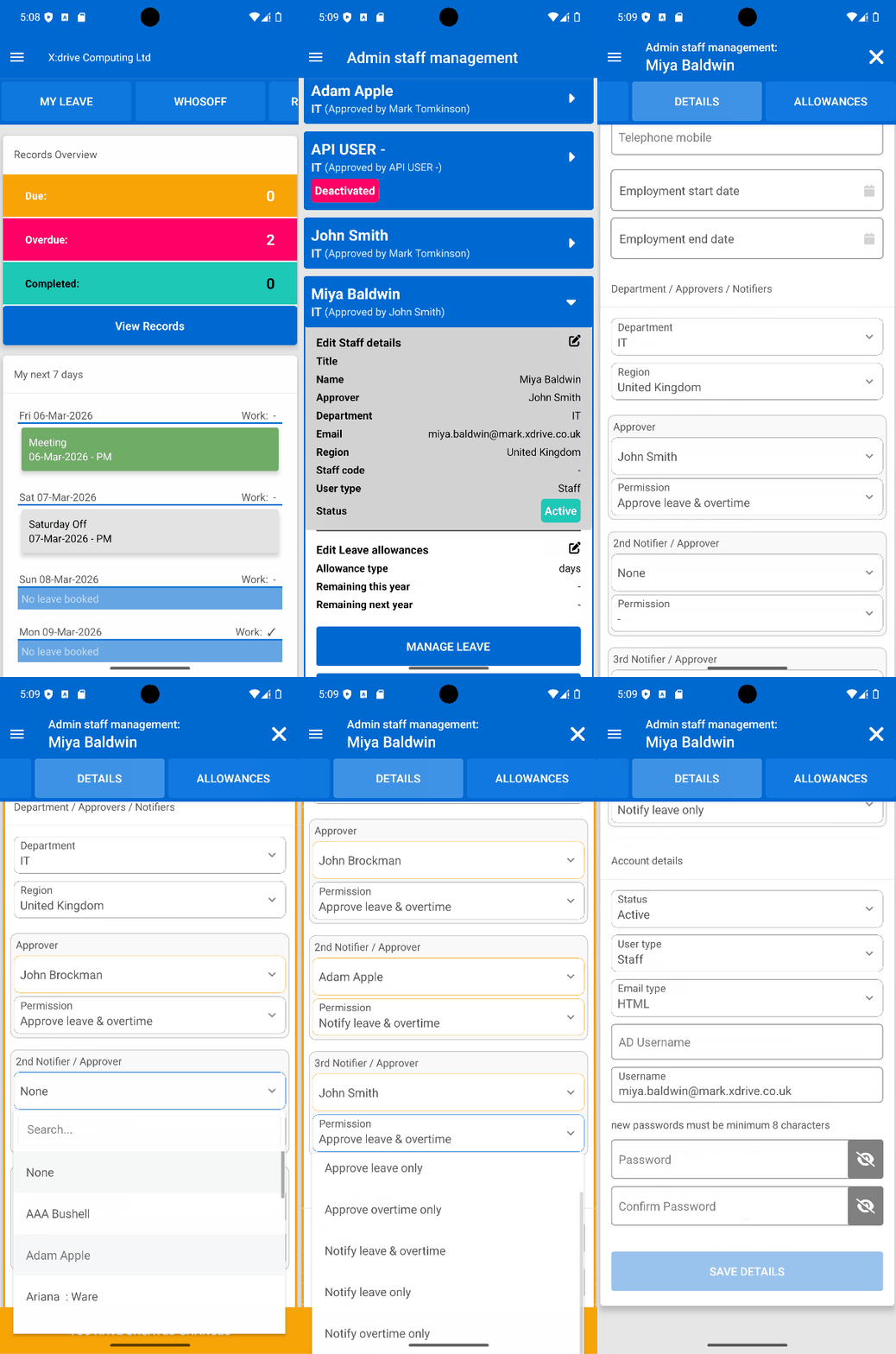
- From the menu, tap Admin and then Staff Management
- Find the staff member on the list (you may want to use the filters at the top to find them more easily)
- Tap on the staff member to expand their details, then tap the Edit Staff details section
- Under the Department / Approvers / Notifiers heading, use the Approver dropdown to set primary approver, then add up to 2 additional approver/notifiers using the 2nd notifier / Approver and 3rd notifier / Approver dropdowns
- Each Approver/Notifier has a Permission dropdown, use this to choose from the following options:
- Approve leave & overtime - Can action both leave and overtime requests
- Approve leave only - Can only action leave requests
- Approve overtime only - Can only action overtime requests
- Notify leave & overtime - Copied in on both leave and overtime requests, but cannot take action on them
- Notify leave only - Copied in on only leave requests, but cannot take action on them
- Notify overtime only - Copied in on only overtime requests, but cannot take action on them
- To apply your changes tap Save details.
Visuals Overview
SHARE


Similar articles
How to subscribe to a calendar feed in Outlook
Setup and subscribe to your WhosOff calendar using Microsoft Outlook
Introduction to the new WhosOff UI
View our quick introduction to the new WhosOff user interface.
How to subscribe to a calendar feed in Google Calendar
Learn how to setup and subscribe to your WhosOff calendar feed from within your Google Calendar account.
How to subscribe to a calendar feed using Office 365
Find out how to setup and subscribe to your WhosOff calendar through Office 365.
Reset or request a new password
As an added security feature, WhosOff does not reveal any passwords to any user of the system, irrelevant of their user level. This article explains how to request a new password, and how a super user can reset an employee's password.
How to log in with Google (Social Sign On)
Link your personal or work Gmail to the WhosOff platform for seamless sign on.